General Setup
ReadTheDocs
I’m getting back into building dynamic documentation with Sphinx so I found the following documents helpful to get a quick start:
In general, the idea is to create your project in Pycharm and create a ‘docs’ folder in the project folder.
In a shell window, cd to the ‘docs’ folder, run the sphinx-quickstart command to get the skeleton files in place and update
the theme in the conf.py file to use the sphinx-rtd-theme like so:
# If you don't have Sphinx installed
pip install sphinx

# If you don't have the theme installed
pip install sphinx-rdt-theme

# Then in your conf.py file
import sphinx_rtd_theme
html_theme = "sphinx_rtd_theme"
You can also connect to the newly created project at readthedocs.org and have the docs auto-built and available to public audience from the cloud. If you decide to do this, you have to have your project repo on Github set to public.
Important
Doc changes need to be merged to the master branch to be picked up by the auto-building tools.
PyCharm Sample Run Config
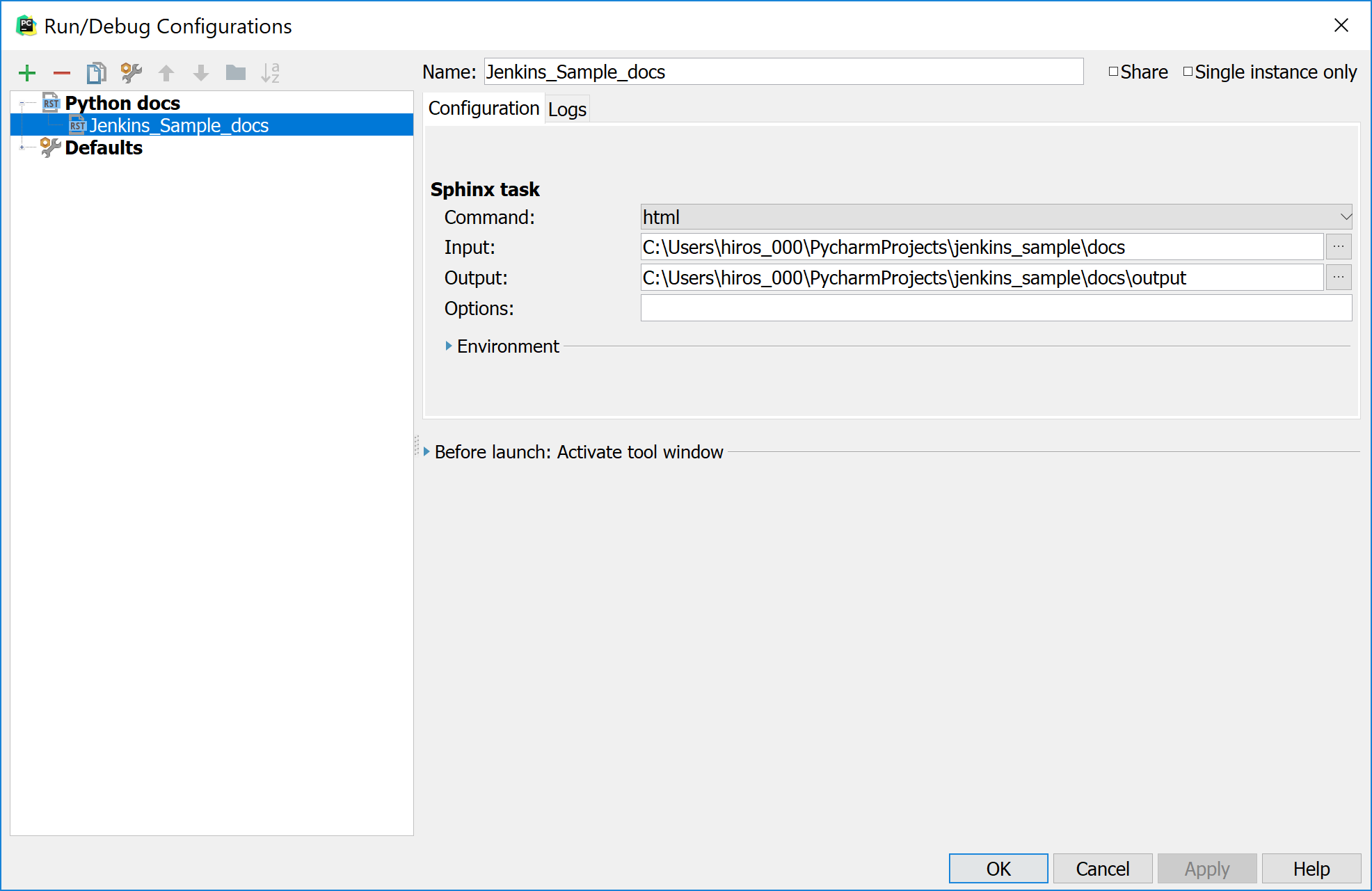
To build the sphinx documentation via PyCharm, here’s a sample run config. It’s pretty simple in that you only need to specify the directory where the sphinx files are (e.g. ‘docs’) and an output directory within that directory (e.g. ‘output). If it doesn’t exist, the command will create it automatically.
Pycharm / Sphinx on Ubuntu 17.10
I ran into an issue with the cmdline.py file installed with the snap Pycharm installer. I had to edit the file in order to get Sphinx to build properly. In addition to updating the official file installed in the project’s virtual environment, I copied it to the jenkins_sample project in kludge_files/cmdline.py. Details are in the file delineated by KWJ Kludge comments. Additional details are in the change history.
SSH Setup (local Network)
The following details are pulled from Tips On Ubuntu.
On the host, run:
sudo apt-get install openssh-server

# Once installed, the SSH service starts automatically. To check its status run
sudo service ssh status

# Replace 'status' above with 'start', 'restart', or 'stop'
# to start, restart, or stop SSH service.

# If desired, to config the SSH server, e.g., listening port, root access, run command:
sudo nano /etc/ssh/sshd_config

# Then to get changes to take effect, restart the service
sudo service ssh restart

# to find the host IP address to connect to from a client
# for the local network, look for an IP address that starts with 192.*
ifconfig
Important
To make a successful connection, make sure both the host and client are on the same network (e.g. same Wi-FI SSID or directly connected to the same router.
IntelliJ Setup
For editing Java projects I decided to install the IntelliJ IDE.
Helpful Linux Tools
- Screenshot - screen capture app
- Gimp - image editor